Leawo Video Converter is the best AVCHD Converter that is designed to convert any AVCHD video to various video formats for use of different purposes. For example, you can convert AVCHD to MKV format to make the high definition video suitable for share online, or convert AVCHD to AVI for portable playback. This program provides extensive profile base to make AVCHD fast playable on a variety of devices: iPod, PSP, iPhone, Zune, Archos, etc.
This guide is based on the latest version of Leawo Video Converter.
Full Guide
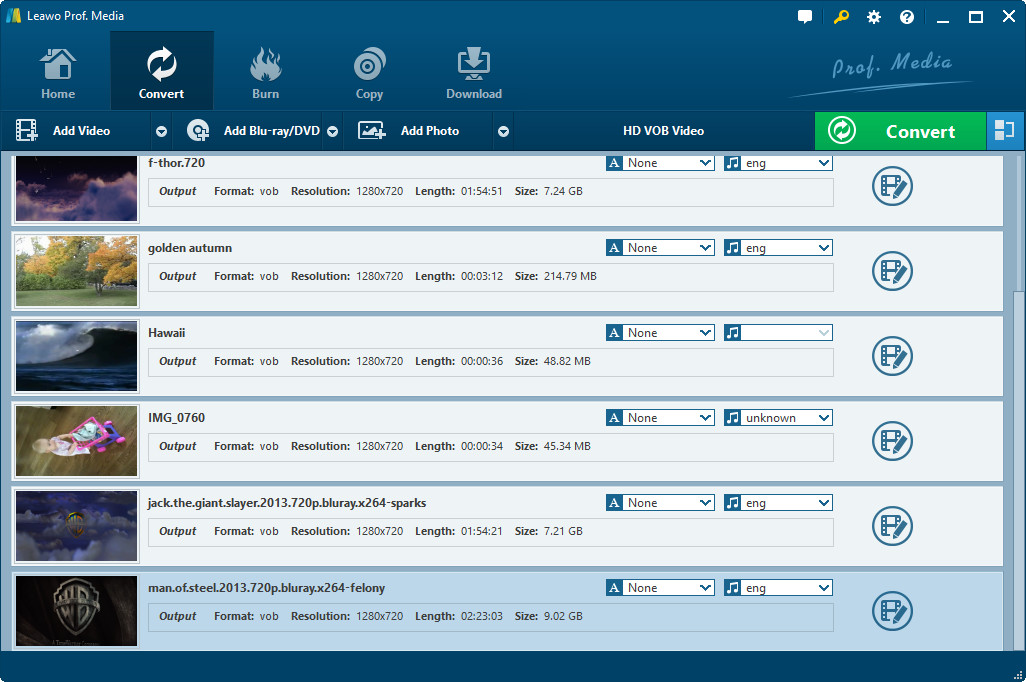
Import AVCHD source
Start Leawo Video Converter, click "Add" to input AVCHD videos from the containing folder. The loaded AVCHD video will be queued on the standby list, and you can set the names for the output videos. If you are not sure whether the videos imported are correct, just double click on a selected file to preview it.
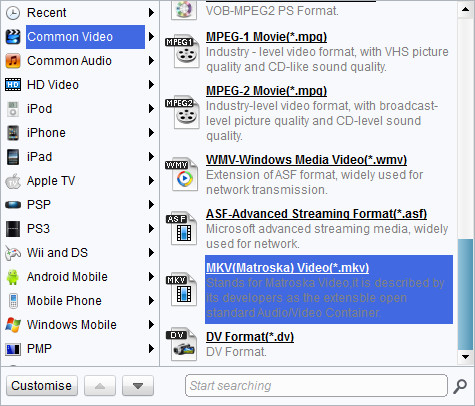
Personalize the output parameters
Move your mouse down to the Profile bar, click to browse for an output format. As you want to convert the AVCHD videos to MKV format, you can choose "MKV video" profile from the "Common Video" category.
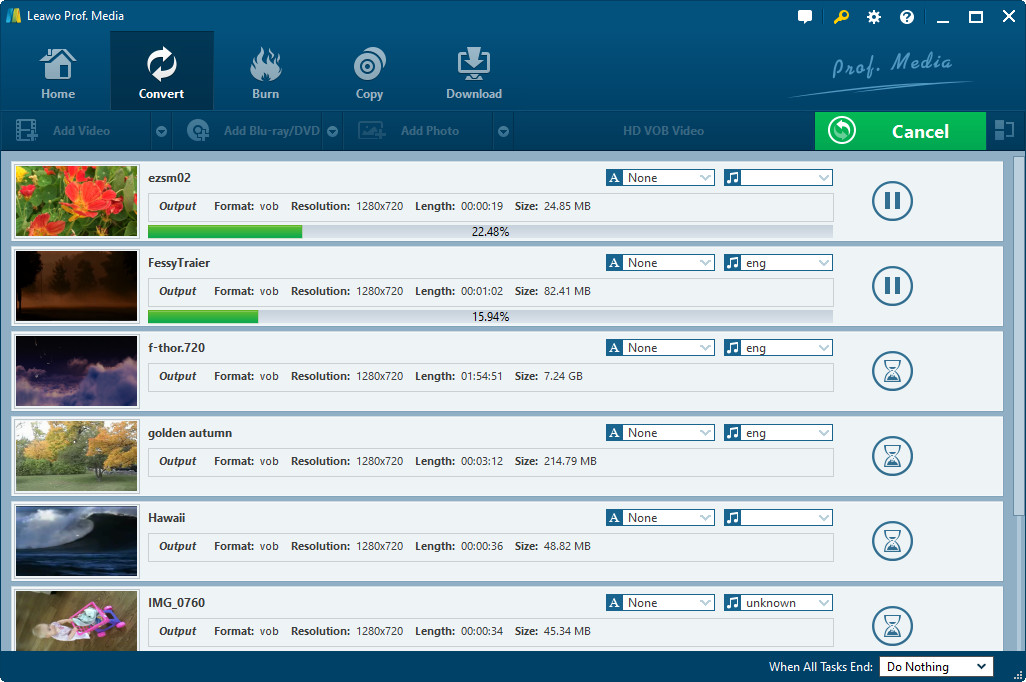
Start AVCHD to MKV conversion
Check the standby list and make sure every AVCHD file is set with the MKV profile, then click Convert button on the lower right corner to start converting AVCHD videos to MKV format. As the conversion begins, you can view the progress of conversion or set auto shutdown after the conversion is done.
When the AVCHD to MKV conversion is finished, you can enjoy and share the converted videos with your friends freely.
Extended Knowledge

AVCHD stands for Advanced Video Codec High Definition. AVCHD is high definition camcorder video format jointly developed by Panasonic and Sony for use in consumer camcorders. AVCHD is a form of video compression that allows the large data files created by HD video recording to be captured and saved on digital media such as hard disk drives and flash memory cards.
MKV is the filename extension for Matroska Multimedia Container, an open-standard free container format. A Matroska file can hold a number of audio, video and subtitle streams, besides attachments like graphics and decoder filters all at the same time, thus allowing a complete movie to be stored in a single file.