As a rising popular HD video format, AVCHD is widely seen in our digital life. AVCHD is an H.264 encoded format, which makes stern requirements on player hardware. Using Leawo Video Converter, which is the best AVCHD Converter, you can convert AVCHD to AVI, MP4, FLV or many other formats to play smoothly on various kinds of hardware. It is very easy to use this program. Plus, you can edit AVCHD video before convert it.
In this AVCHD to AVI guide, we recommend that you use the latest version of Leawo Video Converter.
Full Guide
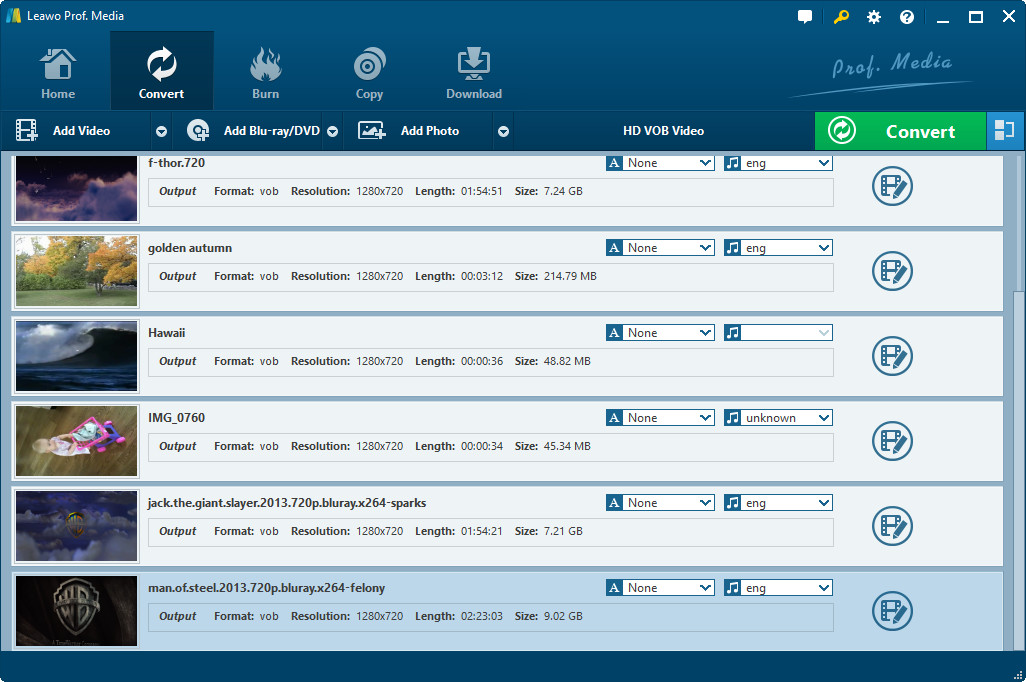
Add AVCHD videos
Start Leawo Video Converter, click "Add" to read AVCHD video files from where you store them. The loaded AVCHD video information will be displayed on the file list, and you can rename the output videos in the file list. To identify the selected AVCHD video, you can double click on it to get a preview.
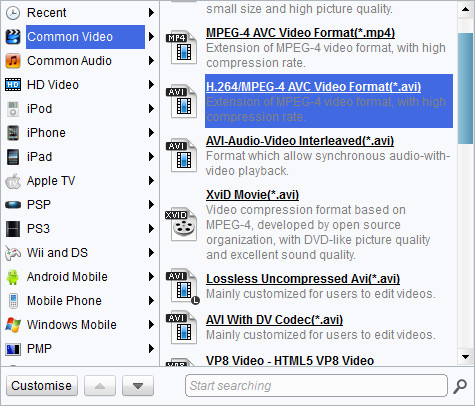
Adjust the output settings
Move your mouse down to the Profile bar, click to browse for an output format. As you would like to convert the AVCHD videos to AVI format, go for the "AVI Video" profile within "Common Video" menu and select it.
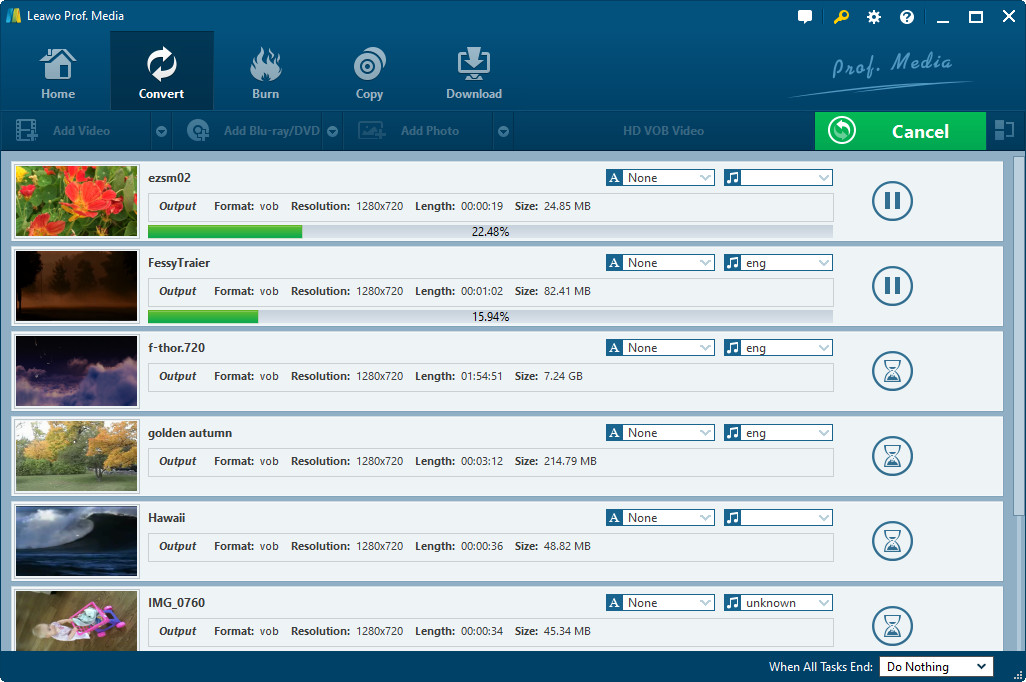
Start AVCHD to AVI conversion
Check the file list and make sure all the AVCHD files are assigned the AVI profile, then click Convert button on the bottom right to start converting AVCHD videos to AVI format. As the conversion begins, you can see the progress of conversion or set auto shutdown for the computer after the conversion.
When the AVCHD to AVI conversion is done, you are free to transfer the converted videos to enjoy and share with your friends.
Extended Knowledge

AVCHD stands for Advanced Video Codec High Definition. AVCHD is high definition camcorder video format jointly developed by Panasonic and Sony for use in consumer camcorders. AVCHD is a form of video compression that allows the large data files created by HD video recording to be captured and saved on digital media such as hard disk drives and flash memory cards.
AVI (Audio Video Interleaved) file is a sound and motion picture file that conforms to the Microsoft Windows Resource Interchange File Format (RIFF) specification. AVI files (which end with an .avi extension) require a special player that may be included with your Web browser or may require downloading.