Converting FLV from MySpace to DVD involves two things: downloading MySpace video to your computer and then burn the video to DVD. Leawo DVD Creator handles these two perfectly. Downloading MySpace video is easy with the built-in YouTube Downloader of Leawo DVD Creator, simply click and save will do the job. Burn the video to DVD is easy with Leawo DVD Creator, import the downloaded video into the program and start the burning.
The built-in YouTube Downloader can not only download MySpace video, but also YouTube video, Google video, etc. Any Flash video (FLV) can be downloaded and burnt to DVD with Leawo DVD Creator.
Full Guide
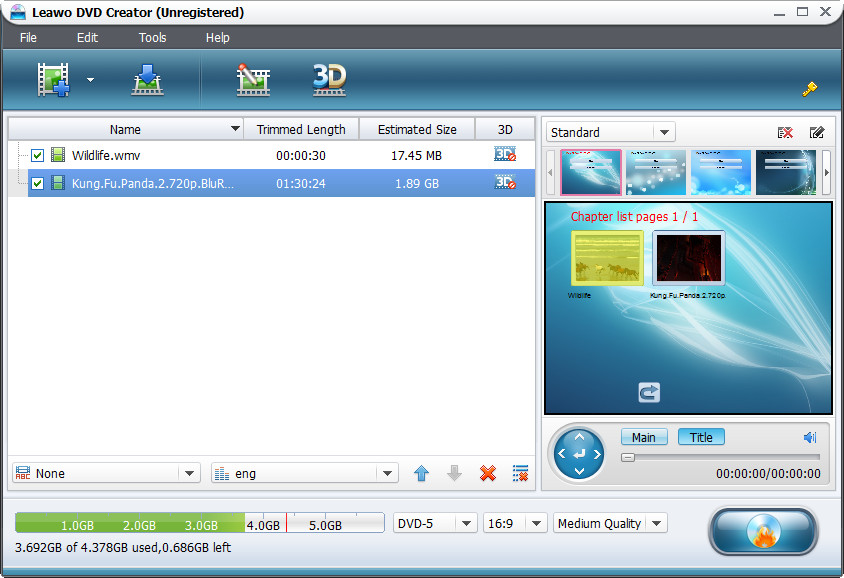
Import Myspace FLV Video Files
After you have dowloaded Myspace videos. Start Leawo DVD Creator and click on "Add Video" button on the main interface to load Myspace FLV files to the Myspace FLV to DVD Converter, or directly drag-and-drop.
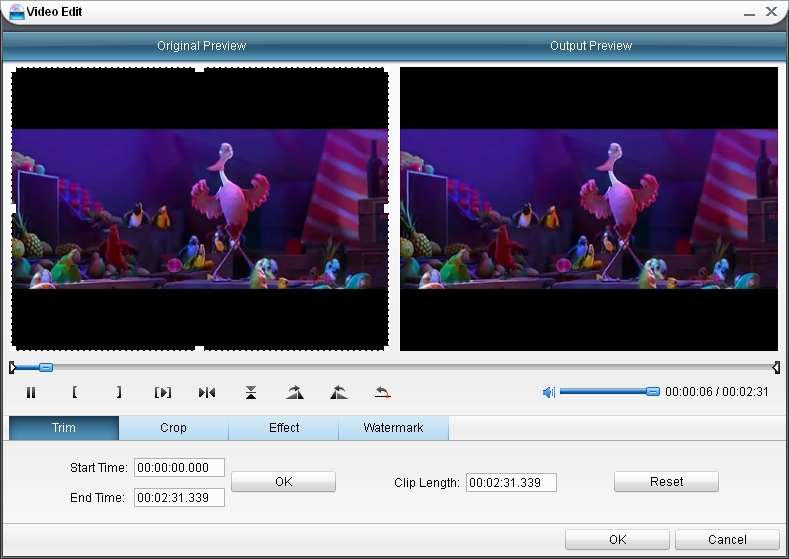
Edit Myspace FLV Video Files (Optional)
Before you burn Myspace FLV video to DVD, you can click on "Edit" button to get to the video editing panel where you can trim and crop video to reserve the necessary part, adjust video brightness, contrast, saturation to achieve the best display effect, add image or text as watermark to make it branded and unique to you.
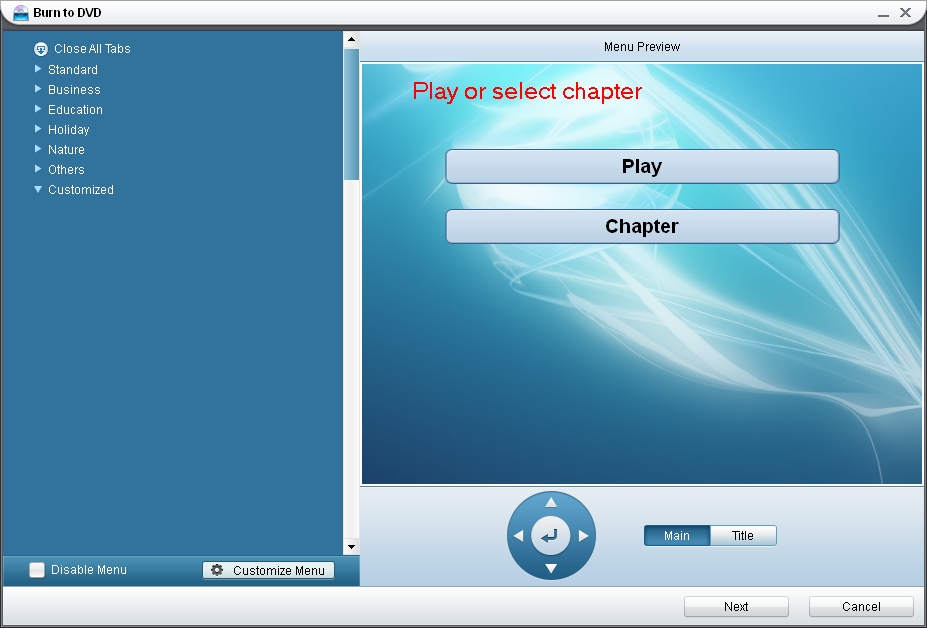
Customize DVD Menu
There are abundant DVD menu templates within this Myspace FLV to DVD Converter, you can either pick your favorite one or set your own image and song as background picture and background music.
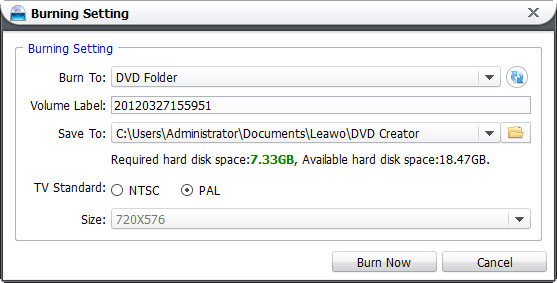
Burn Myspace FLV to DVD
Choose to Burn Myspace FLV files to DVD Disc, DVD Folder or ISO File. Do some settings as below if necessary and then click on "Start" button to burn MOV to DVD.
Related Articles