Leawo Blu-ray Ripper User Guide
As the best Blu-ray converter, Leawo Blu-ray Ripper could help you convert Blu-ray disc and folder. It could rip Blu-ray DVD and convert Blu-ray to video and audio in various formats. Also, this Blu-ray ripper converter could process DVD to video/audio converting. It gets multiple features to enhance your Blu-ray movie experience, including: convert Blu-ray/DVD to video/audio in various formats, set output file parameters, edit videos for customization, create 3D movies out of 2D Blu-ray/DVD source, built-in Blu-ray player to play back Blu-ray/DVD movies, etc.


Rip Blu-ray/DVDs to Video
Step 1 : Import Blu-ray/DVD Source
After you kick off Leawo Blu-ray Ripper, click “Load BD” icon to import source Blu-ray movies for converting. You can import either Blu-ray discs or folders. If you want to convert DVD to video with Leawo Blu-ray Ripper, click “Load DVD” icon and then browse the source DVD files for importing. Also, you could drag and drop source Blu-ray/DVD files for importing.
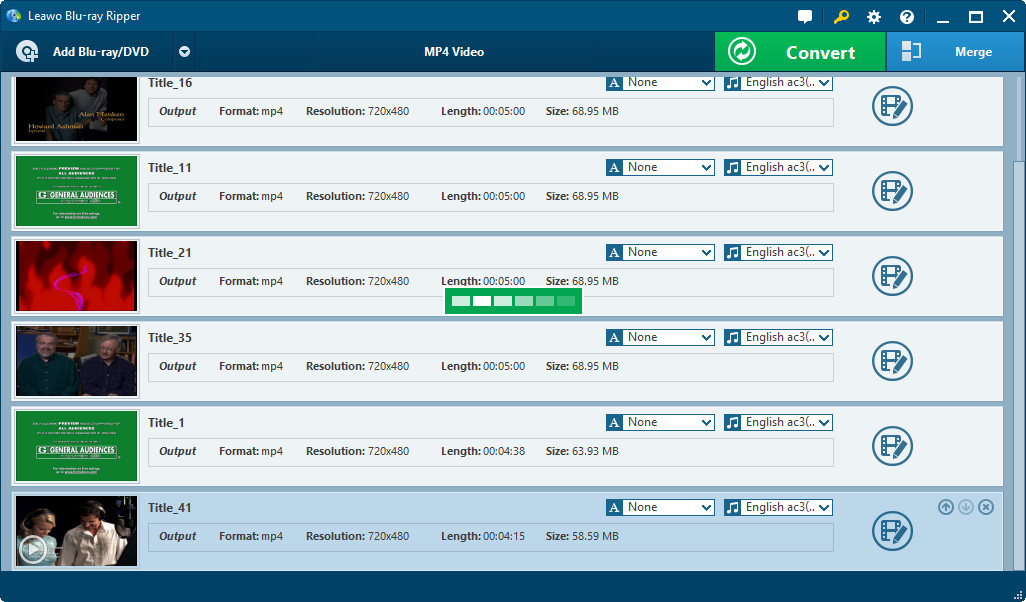
Tip: You can select subtitles and audio tracks from source Blu-ray/DVD movies from the options at the bottom of the left processing list panel.
Step 2 : Select Output Profile
Open “Profile” box on the program interface and select a proper format as output profile. You need to choose according to your real need.

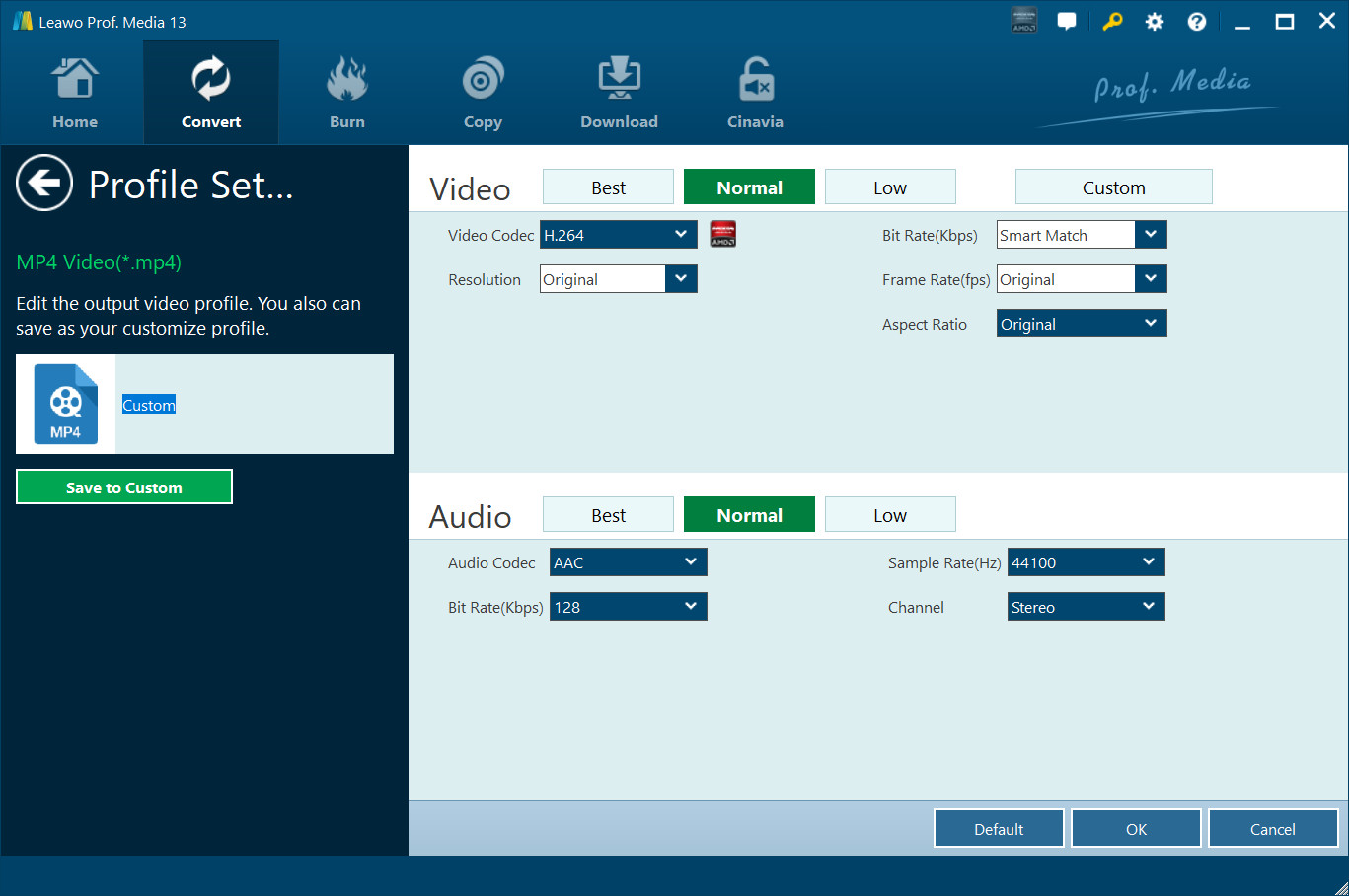
Tip: To make your output files meet your target players more, you could click the “settings” button next to the “Profile” box to adjust output file video and audio parameters, including: Video Codec, Quality, Video Size (choose from provided options or manually input desired video size according to your devices or players), Bit Rate, Frame Rate, Aspect Ratio, Audio Codec, Audio Quality, Bit Rate, Sample Rate, Channels, etc.
Step 3 : Start Converting Blu-ray
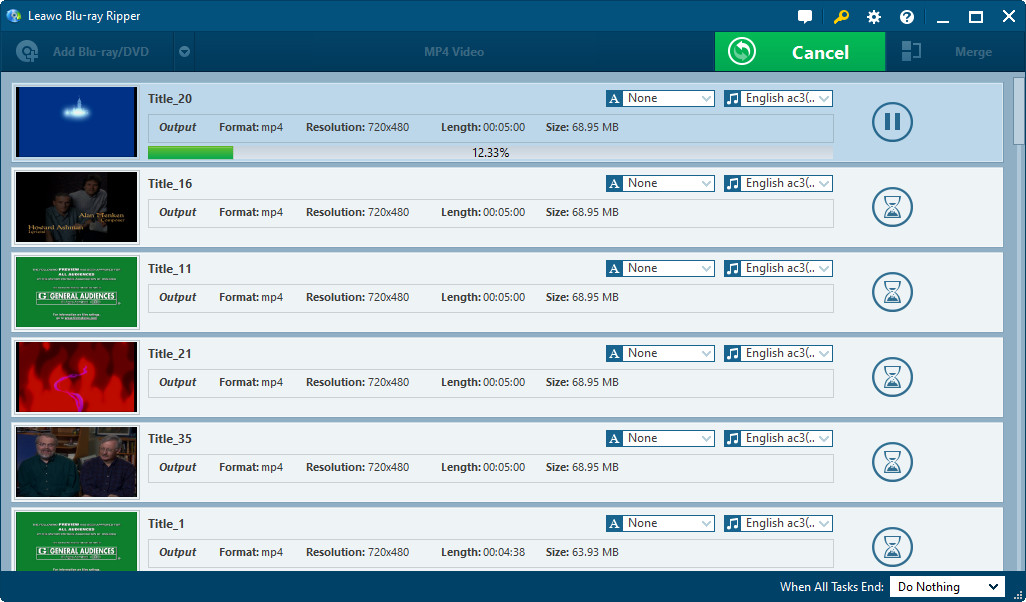
Finally, hit the bottom right convert button on the program interface to start converting Blu-ray/DVD to video. On the converting panel, you could see the detailed converting status and do “After Conversion” settings.