-
Christmas Gift Ideas: 4 Types of Well-chosen Holiday Gifts from the Heart
Posted on December 16th, 2010 No commentsWith Christmas getting closer and closer, besides of decorating your houses, another important thing upon your heart is picking up unique Christmas gifts for your relatives and friends. Christmas gifts in the market today are of multifarious varieties, so it becomes more and more difficult for you to select well-content presents from the sea of Christmas gifts. And I have prepared some Christmas gifts for you to choose. I am sure you can single out some gifts that suit your taste.
The Practical Type: For People Who Are Close to You
Scarves, gloves and hats which can convey warmness directly to the heart of the receiver in chilly winter are the most practical traditional Christmas gifts. For women, you’d better send them cosmetics or perfumes because women often focus on beauty. And as to men, you’d better present them with high-class watches or slap-up leather bags because men usually concentrate on quality.
Strategy One: Scarf + Glove + Hat
Strategy Two: Cosmetic + Perfume
Strategy Three: Watch + Leather Bag

The Creative Type: For People Who Jump on the Bandwagon
The most precious gift does not depend on the expensive price but on the ingenious idea. A Christmas gift that is able to let the receiver feel your attentiveness and sincerity can be said the greatest gift. Mug with your image printed on can let the receiver remind of you when drinking water. Sending your Christmas DIY chocolate is just like sending out your deep affection. Furthermore, planning a trip on Christmas vacation for your beloved ones is also a good choice.
Strategy One: Mug + Your Image
Strategy Two: DIY Christmas Chocolate
Strategy Three: A Fascinating Trip

The Romantic Type: For People Who Are Dreamers
The glittering and translucent crystal can be remarked as the best gift for boys to send to their girlfriends and it witnesses love between them. Dessert is an indispensable part of Christmas, making ginger bread house for your family members is a rather wonderful idea. If you want to express your love to someone then a romantic candlelight dinner with fragrant flowers and red wine will be your preference.
Strategy One: Crystal Ornament
Strategy Two: DIY Ginger Bread
Strategy Three: A Romantic Candlelight Dinner

The Fashion Type: For People Who Enjoy Digital Life
Digital products are the most favored Christmas gifts nowadays. A digital photo album that can store lots of beautiful Christmas photos can be used to send to family members and intimate friends. iPod has been very popular among stylish people so you can choose it as a gift. And iPod Converter Suite (50% off on Christmas Special Offer) which can convert all videos to iPod compatible format is iPod’s excellent partner. For people who are fond of playing games, the new PSP Go must be their favorite.
Strategy One: Digital Photo Album
Strategy Two: iPod + iPod Converter Suite
Strategy Three: PSP Go
Dear friends, hurry up to select a Christmas gift and give your beloved one a big surprise. Merry Christmas to all of you!!!
Christmas best Christmas gift, Christmas, Christmas Day, Christmas gift, Christmas gift idea, Christmas gift ideas, Christmas gifts, Christmas presents, convert iPod, cosmetic, Digital photo album, DIY Christmas Chocolate, Gift ideas, gift ideas for Christmas, ginger bread, ginger bread house, Holiday gift, Holiday Gifts from the Heart, iPod, iPod Converter, perfume, PSP, PSP Go, Xmas gift idea -
How to Freely Enjoy the Beatles Rock Music on Your iPhone/iPad/iPod
Posted on November 24th, 2010 No commentsThe exciting news that the Beatles had landed iTunes last Tuesday must have made so many fans of this band
 amazing and crazy, especially to those hot fans that have got an iPod, iPhone or iPad as the great convenience for them to buy their favorite Beatles songs, though costing a large amount dollars.
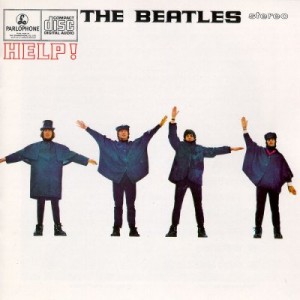
 The latest news showed that the classic Hey Jude has been the most-downloadable song on iTunes during the first days less than a week. It is such popularity for the Beatles on iTunes that many music fans would download these fantastic songs to their portable devices like iPhone, iPod or iPad to fulfill the spare time. The iTunes has brought great convenience for audience in easy downloading music and perfect enjoying.
The easiest way to get these songs enjoyed on your portable devices is to download your favorite ones right from iTunes store via your device. But, we all know that the music we want to download from iTunes would be downloadable
 only if we have paid for it. Think about this budget: the present price for each single song of the Beatles is 1.29 dollars, how much would it cost to download so many favorable songs of the band?
Here, an effective simple method is strongly recommended for you to enjoy your favorite Beatles songs on your portable devices without costing you so many dollars to buy songs from iTunes. You even need not use iTunes to download songs. What you need to do is to download an iPad converter, iPod converter, or an iPhone converter according to your portable device and then convert the Beatles songs to formats your device supports. This simple way would cost much less than directly buying songs from iTunes store and retains the same audio quality for your enjoyment. All these converters support both video and audio input and output to meet your desire with different file formats available. Also, these universal converting tools for your portable devices can decrypt DVD movies; therefore you can decrypt your stored Beatles DVD to your portable devices for enjoyment anytime anywhere.
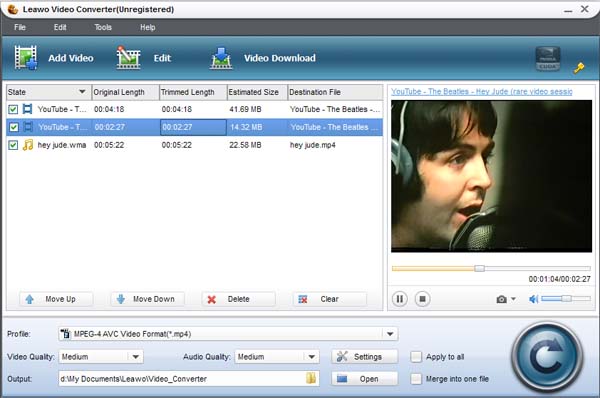
Now, you have been acquainted of the ways to freely enjoy your favorite Beatles songs on your portable devices: the way through iTunes which will cost you some dollars to buy Beatles songs and the way to use a converting tool which owns exactly the same effect for enjoyment but cost you less. Which would you choose to listen to the absolutely great Beatles songs?
^_^, have a good time with songs converted by these converting tools on your portable devices.
займ на карту rusbankinfo.ru
Entertainment news Beatles, Beatles albums, Beatles Box set, Beatles music, Beatles on iPhone, Beatles on iTunes, Beatles rock music, Beatles songs, convert to iPad, convert to iphone, convert to ipod, iPad video converter, iPhone Converter, iPod Converter, Portable devices, Rock music, the Beatles, the Beatles on iPad, the Beatles on iPod, the Beatles songs, Video Converter -
Discount for Hot Summer-Download Mobile Converters Now!
Posted on July 28th, 2010 No comments
Are you ready for summer holiday? Have you got any good ideas for the past time on the long summer journey? Well, why not watch your favorite videos on your mobile devices, especially on your recently obtained cool iPhone 4? Now Leawo portable solutions offer cool discounts for hot summer promotion: from 20% to 40% off. Save up to $20!Why choose Leawo portable solutions?
Leawo portable tools enable you to watch videos on your mobile devices. They convert most popular video formats, so you can play them on mobile gadgets such as iPhone 4, iPod, iPad, PSP, Zune, etc. They support most popular formats while still maintaining the best audio and video quality. Batch conversion is also available.What Leawo portable solutions can do for you?
Easy iPhone Converter Suite-a perfect tool for all common video and audio files as well as DVD movies to iPhone 4 format conversion. It assures format compatibility, playback smoothness, powerful customizations and fast conversion with iPhone, iPhone 3G and 3GS, also iPhone 4.Easy iPad Converter Suite-an handy toolkit for iPad users to convert both DVD movies and common videos to have the best playback on iPad. It incorporates advanced video technology to provide you with flexible customizations and low time consumption.
Easy iPod Converter Suite- an excellent utility for all video to iPod format conversion with flexible customizations. It is the best choice for iPod users to easily watch videos, movies and enjoy music on iPod Classical, iPod nano, iPod touch and etc.
Easy PSP Converter Suite- a toolkit for PSP users to convert kinds of video formats to PSP with excellent output quality. This suite provides you powerful functions like merging files, editing videos, etc. Thus you can enjoy favorite videos on your PSP/PS3.
Hurry up, it is time-limited! Take the time to find your desired movie-watching solutions for iPad, iPod, PSP and iPhone 4 here.займ на карту rusbankinfo.ru
-
Remember Isaac Newton, watch FLV videos on your iPod/iTouch
Posted on January 4th, 2010 No commentsSir Isaac Newton has been a famous figure of science for centuries. He is very well known for being hit by an apple from a tree and later devising the laws of motion we still appreciate a lot today. As a physicist, mathematician, astronomer, natural philosopher, alchemist and theologian, Sir Isaac Newton’s magical life has been illustrated into videos and movies by people who love him.
On the 367 birthday of Sir Isaac Newton today, it is a great occasion for us to get to know this Supernova in science history and his magical life. Thanks to the internet, we can easily download a number of FLV videos about Sir Isaac Newton. And with a gadget like iPod/iTouch, we can easily carry the video to share on the go. On this anniversary for the scientific giant, our friends and families would appreciate us for presenting them Newton’s amazing stories via videos. Our children would love to watch videos about young Isaac Newton and this could engage them into the pursuit of their noble life. We could get to know Newton better as we watch more and more videos about him. But there is one difficulty to overcome: how to convert the online FLV video to iPod/iTouch MP4 format?
Do you have a good iPod/iPhone converter at hand? If not, check out the latest version of Leawo iPod Converter, it can very likely be the one you are looking for. Get Leawo iPod Converter for a trial first and we will start converting online FLV videos to iPod/iPhone MP4 format right away.
Why use Leawo iPod/iTouch Converter for iPod/iTouch MP4 conversion?
- It is easy to get started. Most functions are called up in one or two clicks. Whether you are professional or amateur, you can make good quality iPod/iTouch MP4 videos in no time.
- It converts fast. The program can convert video in 200%-300% real time.
- Complete video quality control. Users can adjust codec parameters to make any output from the smallest file size to the best playback quality.
- It consumes less memory. The program has a good management of memory consumption, thus runs steadily and smoothly.
Let me pick you up on how to convert FLV videos to iPod/iTouch for playback:
Step 1: launch Leawo iPod Converter and import the FLV video files.
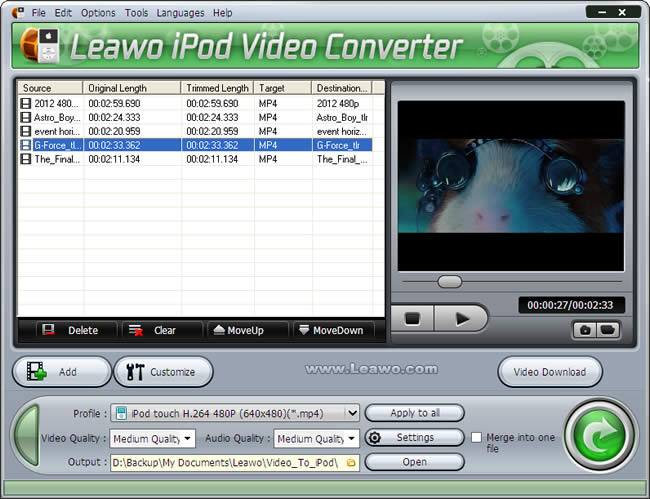
Leawo iPod Converter conveniently allows you to drag and drop the files for import.
You may preview and screenshot the video before you convert it.
Then organize the file order and rename the file as you like.
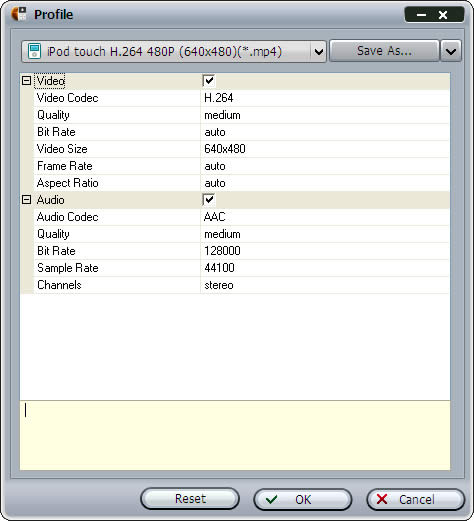
Step 2: apply an appropriate output profile and check the codec settings.
Leawo iPod Converter has preconfigured MP4 profiles for video output for iPod/iTouch. There are different profiles addressed to different screen resolution.

Apart from the presets, you may find codec parameter settings very useful for custom outputs. Advanced codec parameters include Bit Rate, Video Size and Frame Rate.
Step 3: use video editor to customize the video as you like.
As part of Leawo iPod Video Converter, the video customization feature is a useful approach to help improve the display effect of the video.
Go to Effect tab to find adjustment controls of audiovisual effects.
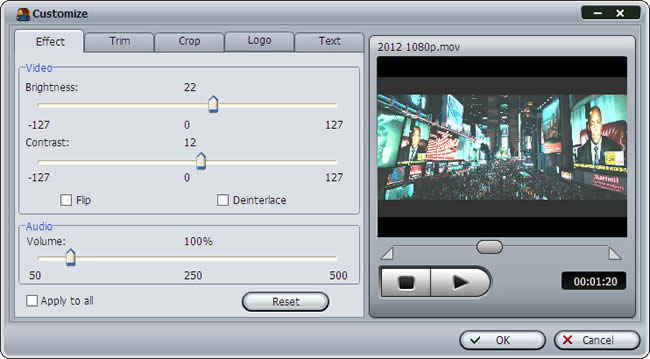
Go to Trim tab to split the video in millisecond precision.
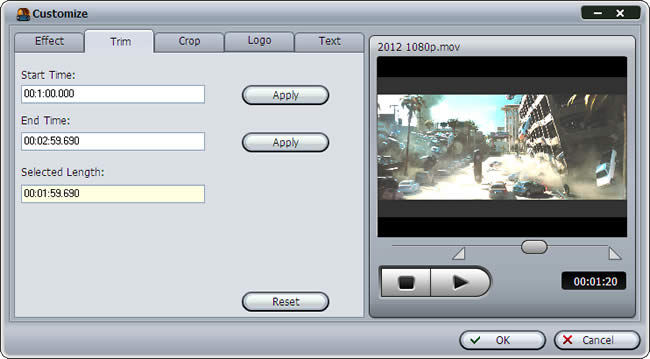
Go to Crop tab to cut the display size of the video.

Go to Logo tab to apply an image as a watermark.
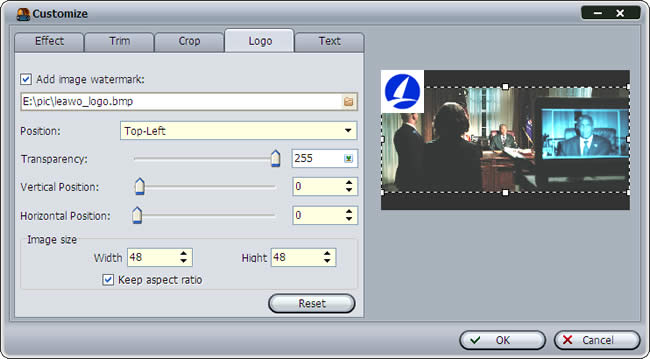
Go to Text tab to insert a text as a watermark.
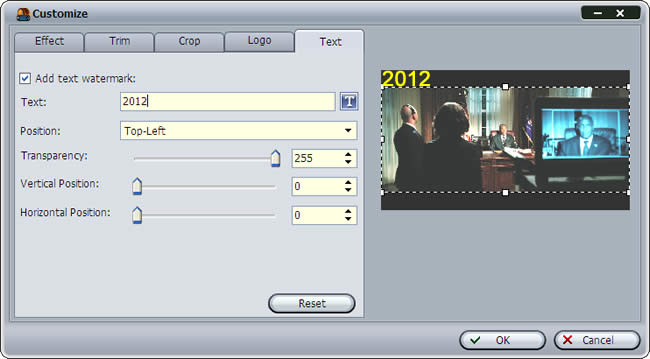
Step 4, start the FLV to iPod/iTouch MP4 converting process.
Leawo iPod Converter can batch convert the video files on the standby list. You can easily keep track of the progress in the process monitor. If you need to get away for a moment, you can check "Shut down the computer" to let the program helm for you.

Now, take a rest and turn your iPod/iTouch to video mode. I believe you must have now successfully converted any Isaac Newton videos you have to playback on iPod/iTouch. Have video conversion problem with your iPod/iTouch? Let Leawo iPod Converter help you through easy and fast.
займ на карту rusbankinfo.ru
-
The easiest way to make video effects better with Leawo Video Converter
Posted on September 28th, 2009 No commentsDo you want to make your video look sharp and clear and get rid of the dull color and dark scene? We certainly can do it with a handful of softwares, like the famous Adobe Premier and Sony Vegas. Although these video edit softwares are very strong in doing everything with the videos, they may be too down to the details in edit functions to accommodate simple and quick enhancement on videos. Now you have a light-weight video editor, Leawo Video Converter, to manage it for you. It is a slim and neat video converter, but can suit the need to better video effects in the easiest way. You can adjust the brightness, contrast, audio volume and even deinterlace your videos with Leawo Video Converter, and convert the videos to any format you like via its dedicated feature in video conversion. In this article, let’s learn how to make video effects better step by step.
First of all, Open Leawo Video Converter and import the video you want to edit. Unlike Windows Movie Maker, most of the videos are supported for input, because Leawo Video Converter is a universal video converter program.
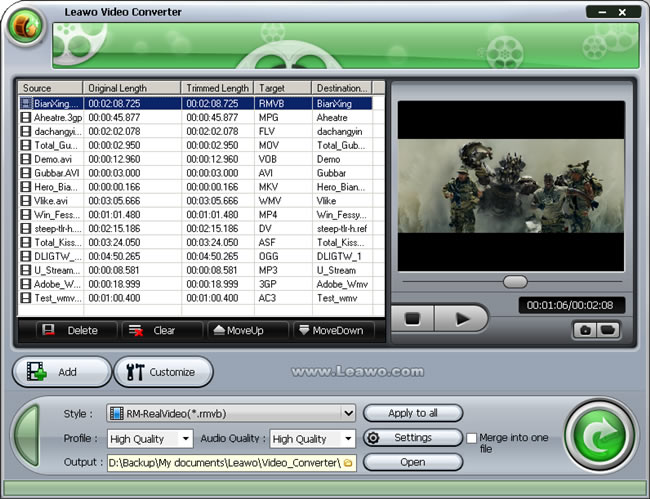
Then, select any one of the videos on the list and click open the Customization panel. It will set up a control pad where you can start to do changes with the videos.
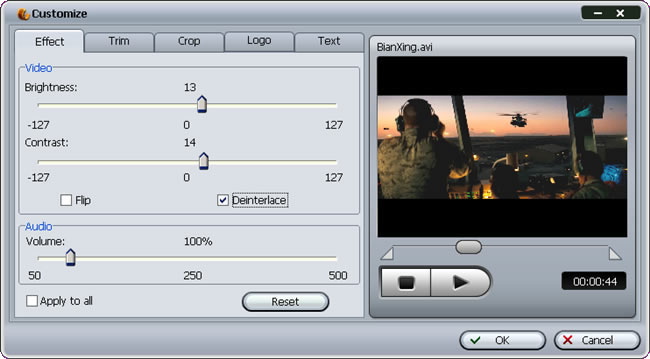
Let’s see how to use the settings above to enhance the video effect.
If the source video shows a little dim, just slide up the brightness so that more details will be revealed on the screen. The brightness control usually works in company with the contrast to compensate for color distortion. Move the sliders and search for the best enhancement you need. It is easy to feel the changes since the adjustment is displayed real-time in the preview window.
Deinterlace can also contribute to video enhancement. Sometimes you may have videos which are sequence of interlaced picture frames, that is, frame composed of even scanlines followed by frame of odd scanline and repeated. This composition of video is usually generated by some video recorders and works originally on TV with electronic scanlines. Leawo Video Converter offers deinterlace function that will combine the scanlines of even field and odd field, making the video more comfortable for watching on LCD screen and more suitable for further editing.
Same way goes for Audio Volume enhancement. It is rather disturbing when you have to struggle to tell apart the voice in the movie or feel intense of striking shouts and cries. Leawo Video Converter can help put the sound volume back to acceptable level.
Apart from video effect enhancement, Leawo Video Converter is capable of trimming, cropping, logo and text applying. Although the terms may be a little raw to your ears, it is not difficult to adapt at all. Finish the video customization and save the video in any format you like. Leawo Video Converter is a powerful video converter all right.
It is capable of more than 100 kinds of output which are canned in profiles and optimized. Just choose any of the output profile and start converting and saving.
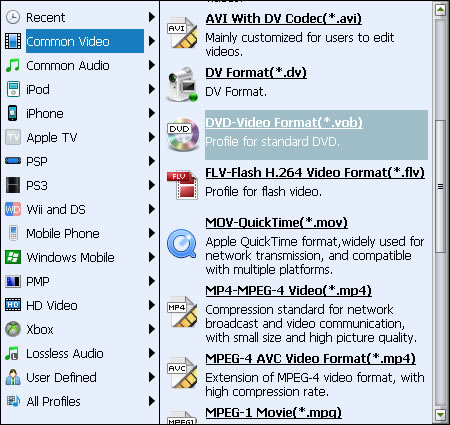
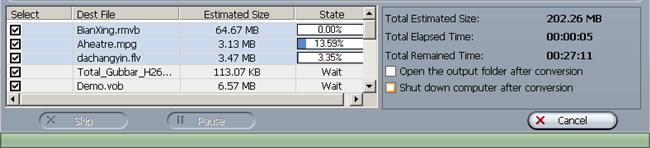
Congratulations! So far so good. You have already got the ability to better every video you have. With a slim body and ultimate format support plus genuinely useful video edit features, Leawo Video Converter can best suit your need to do essential things with diverse videos. Download it and have a try for yourself!




Recent Comments