-
Leawo Kicked off the 3rd-Round Weekly Giveaway with Free AVI Converter, Along with 50% Price Cut on Blu-ray Ripper/Creator
Posted on March 28th, 2013 No commentsFor thanking the long-term support, Leawo has currently held two weekly giveaway activities to provide totally free media solution programs to media fans. Now, as reported, since the smooth going of the previous two giveaways, Leawo kicked off its third-round weekly giveaway during this weekend, from March 29th to March 31st. The same as the previous two giveaways, this time, Leawo would once again give out a totally free media program as giveaway – Leawo Free AVI Converter. Meanwhile, aside from the free giveaway gift, people could get extra 50% price cut on Leawo Blu-ray Ripper and Leawo Blu-ray Creator.
What could Leawo Free AVI Converter do?
Leawo Free AVI Converter is a clean and powerful AVI video converter freeware that can easily convert video files including DRM-protected files from iTunes between AVI and various other video formats in either 2D or 3D for totally free, like: XVID to AVI, WMV to AVI, MPEG to AVI, MKV to AVI, MOV to AVI, AVI to MP4, AVI to MP3, AVI to FLV, etc. With Leawo Free Video Converter, people could easily convert video for multiple uses with zero cost: playback on trending devices like iPhone 5 or Lumia 920, editing in iMovie or FCP, or uploading to YouTube or blog.
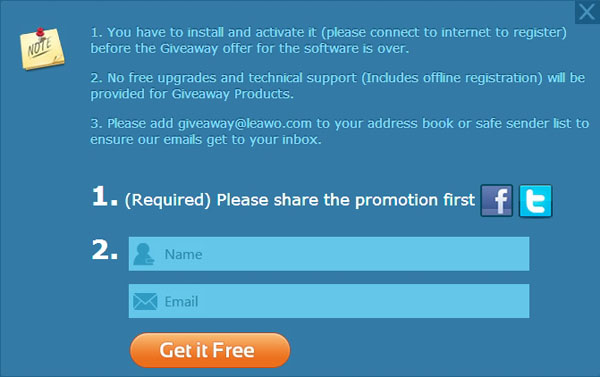
It’s simple to access to the Free Leawo AVI Converter giveaway. Everyone could visit Leawo Free AVI Converter page during March 29 to March 31 to take part in the giveaway activity. Two steps to get the free Leawo AVI Converter: firstly share the promotion on Facebook or Twitter, then register personal information including name and email address to get the free registration code.
Note: People have to download and activate the free giveaway gift before the deadline (PST 23:59 of March 31, 2013). No free upgrades and technical support will be provided upon the giveaway products.
50% price cut upon Leawo Blu-ray Ripper and Blu-ray Creator
Leawo Blu-ray Ripper is an all-inclusive tool for handling both Blu-ray and DVD discs. This Blu ray Ripper could decrypt, rip, convert and backup Blu-ray/DVD movies to videos in various formats for multiple players. Now, this Blu-ray converting program adds the ability to rip and convert 3D Blu-ray movies to 3D videos, which betters 3D movie enjoying. On the contrary, Leawo Blu-ray Creator is a program that converts and burns video in all formats to Blu-ray/DVD content for safekeeping or sharing at will.
To embrace the 50% price cut of Leawo Blu-ray Ripper and Blu-ray Creator, participators only need to make use of the 50% off discount coupon code: AVIGW50.
It should be noticed that both the free giveaway registration code of Leawo Free AVI Converter and the 50% off discount coupon code are only valid from March 29th to March 31st, 2013.
займ на карту rusbankinfo.ru
-
How to crop video for my players with Leawo Video Converter?
Posted on September 30th, 2009 No commentsHow to crop video for my players with Leawo Video Converter?
Many 16:9 aspect ratio videos have horizontal black margins in order to stuff the screen in 4:3 aspect ratio. But these black-margined 4:3 aspect ratio videos will gain extra vertical black margins when playing on widescreen video players like PSP. The black margins simply disturb the video enjoyment and take up unnecessary space, so we need to use a video edit tool to remove them once and for all. Clumsy and sophisticated video edit softwares are obviously out of the question. A slim and responsive video tool, Leawo Video Converter, can bring this task within the reach of everybody. Let’s see how to crop video with Leawo Video Converter.
Open Leawo Video Converter and load the videos for cropping.
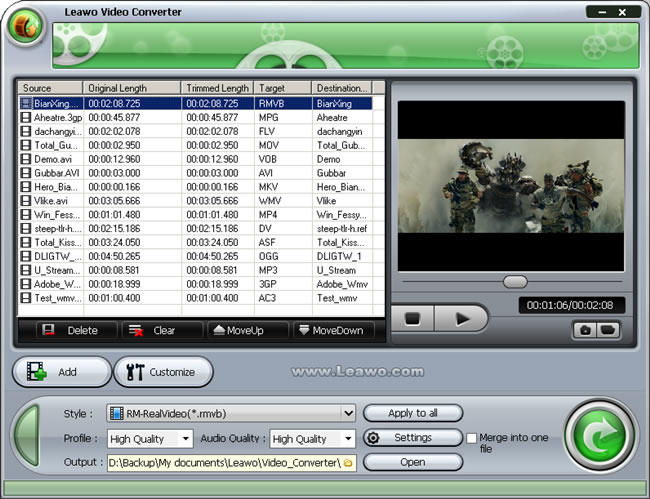
Then select one of the videos and click on the Customize button to reveal the video edit panel. The panel packs in 5 video edit functions: Effect, Trim, Crop, Logo and Text. The Crop feature is easily found among them.
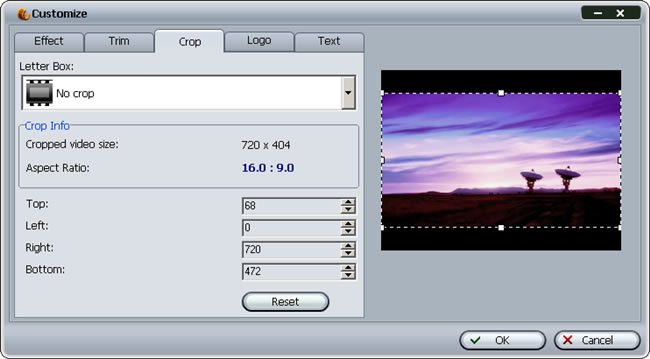
There are three ways to crop the videos on the panel.
1. Use the Letter Box profile. It provides several profiles to easily pinpoint the black margins in common cases.
2. Adjust the parameters of Top, Left, Right, Bottom to get an accurate crop shape.
3. Most straightforward is to tell apart the black margins with your naked eye and directly resize the frame on the preview window, representing the output video size.
The modification will be reflected on Crop Info telling the cropped video size and aspect ratio. When you need to crop the video to match your PMP’s screen, say 320*240, keeping an eye on this information is really helpful.
After having the video cropped, we have to generate a new video file with this modification. Leawo Video Converter embraces more than 100 output profiles for your choosing, ranging from the popular formats to the fashionable portable players.
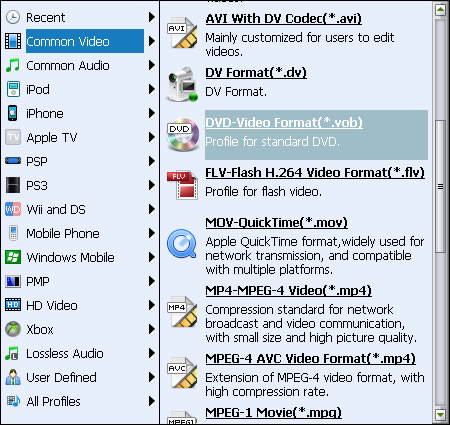
There you have successfully cropped the video with black margins thoroughly removed. Leawo Video Converter can be a very handy tool in handling all kinds of videos and crop their black margins, because it is an ultimate video converter all right.
-
How to get video shorten with Leawo Video Converter
Posted on September 29th, 2009 No commentsPeople usually record TV programs they are fond of and many more would take clips of daily incidents with their cell phones. The videos taken are often inevitably longer than expected. Therefore such videos are requesting trimming, that is, to cut away unwanted head or tail to shorten the video length and meanwhile keep the file size small and efficient. To accomplish such simple task, you don’t have to bother yourself with industrial level software such as Sony Vegas, because Leawo Video Converter can simply suit your need. You can cut the video in a precision of millisecond; absolutely get rid of the unwanted parts without any remains. Afterwards, Leawo Video Converter outdoes Windows Movie Maker by a big margin with the capability to output videos in many more diverse formats.
Leawo Video Converter can deal with whatever videos types you get from your recording devices or other sources. Import the video files you would like to trim.
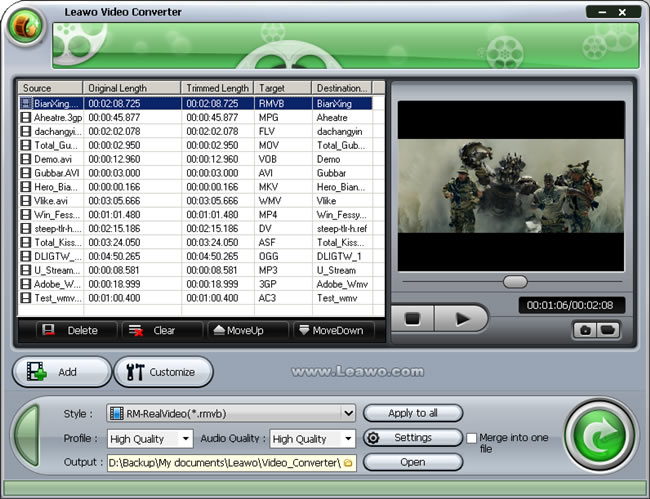
Then, Click open the Customize window. As you can see below, the tag representing trim function is easily spotted with one glimpse. Select the tag to reveal the trim function panel.
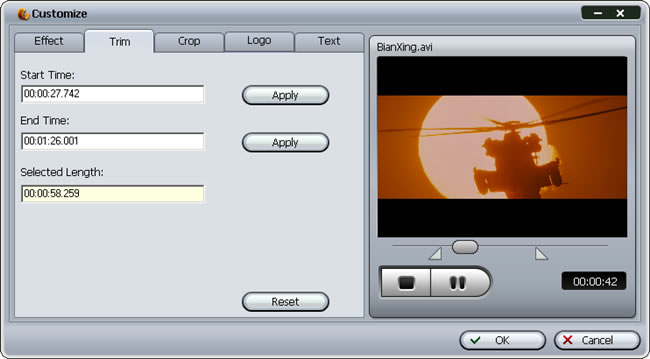
It doesn’t need much lecturing on how to trim a video, because we cut things with knife everyday, and video trimming should not be more difficult. Here on the panel, the video will play to give you a preview, and then you need to decide on start point and end point of the timeline. More direct way to do so is drag the limiters on the play bar. It is helpful when you are not big on numbers.
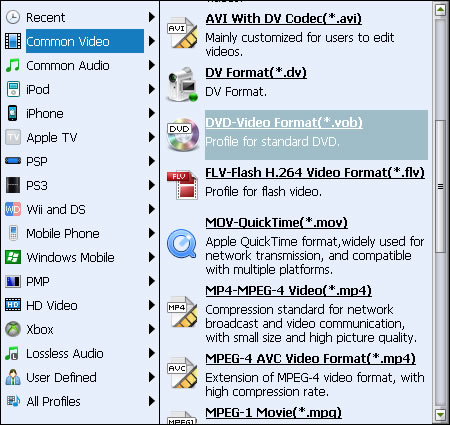
Well, that’s it. Leawo Video Converter makes trimming video just like cutting cucumbers, easy and down to millisecond accuracy. It is also ready for you to output the modified video to all kinds of formats. In Leawo Video Converter‘s profile library, you have more than 100 choices to match specific terminal devices.
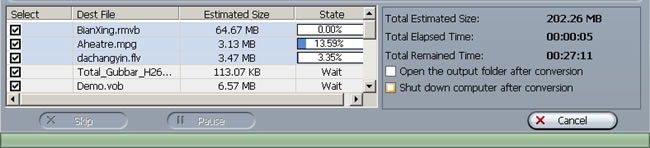
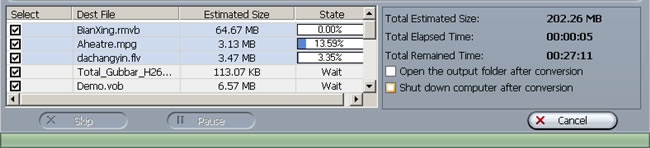
Leawo Video Converter can batch convert any number of trimmed videos for you, and the after done actions are especially helpful for efficiency.
As a universal video converter which is offered at lower price with equal functions, Leawo Video Converter is a good choice indeed for video enjoyment.
займ на карту rusbankinfo.ru




Recent Comments